Start with the whole product
Leave space around handles, straps, and edges. Use even light and a photo that clearly separates the product from its background.
 AI Remove Background
Prepare product cutouts for your shop, catalog, or next campaign.
Upload an image1 credit per successful image. Technical failures return your credit.
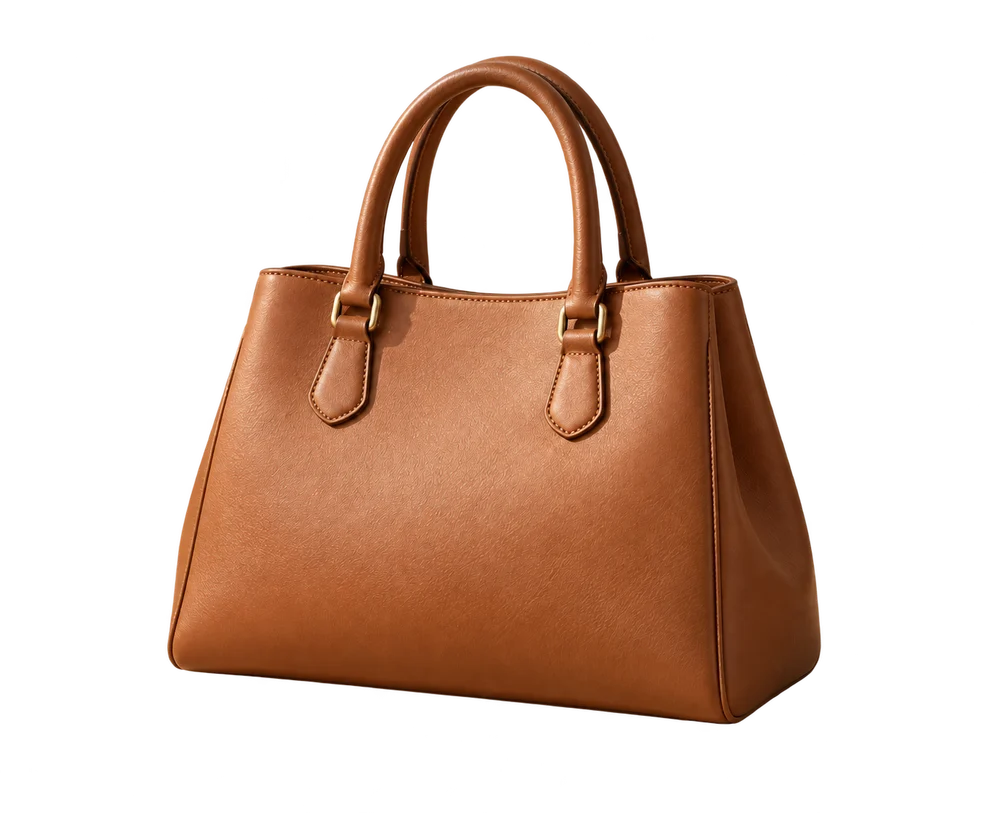
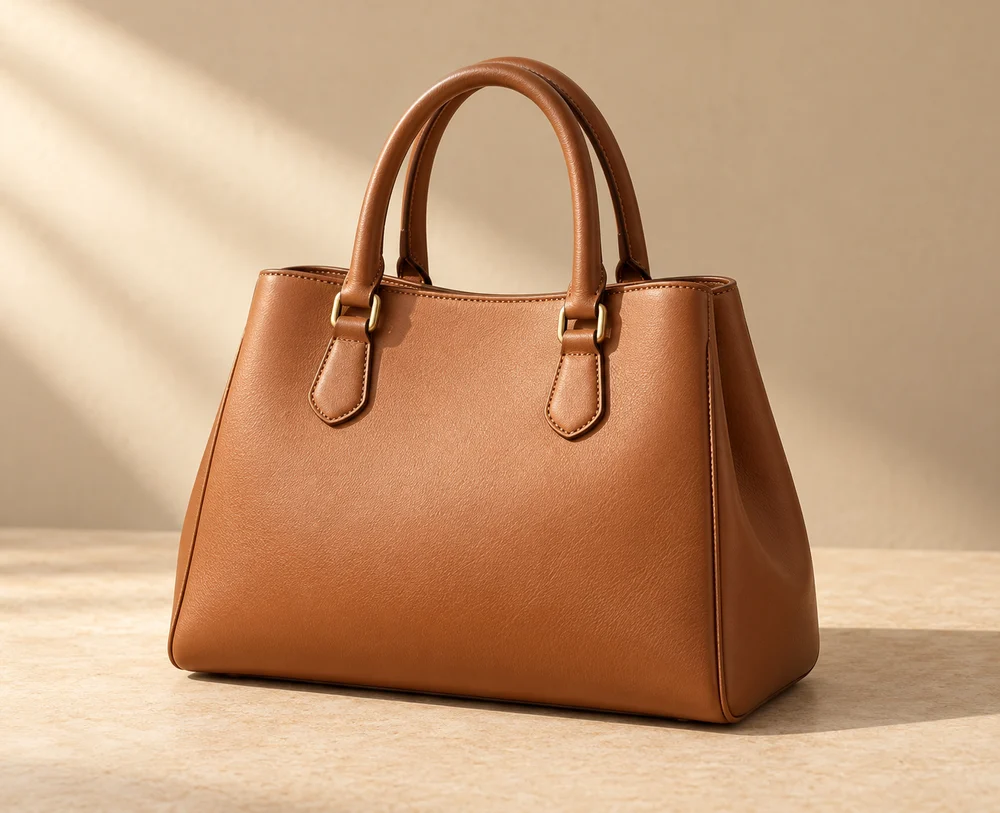
Leave space around handles, straps, and edges. Use even light and a photo that clearly separates the product from its background.
Download the transparent or white-background PNG, then finish your marketplace layout in your preferred editor. Check your marketplace’s current image requirements before publishing.
Photograph the complete product in soft, even light. Keep handles, straps, labels, and packaging inside the frame, with a small margin around the edges. A background that contrasts with the product makes its outline easier to distinguish. Clean the lens and check focus before taking the photo; background removal cannot restore a blurred label or a cropped handle.
Choose one product or a clearly arranged group as the subject. If a hand, display stand, or decorative prop touches the product, the model may treat it as part of the subject. For a simpler cutout, take another photograph without the prop rather than expecting the tool to decide which object belongs in your listing.
Sign in, select one JPG, PNG, or WebP up to 10 MB, and start background removal. A successful image uses one credit. When the result is ready, inspect the transparent preview and compare it with your source. Check logos, printed text, colors, reflective edges, and the shape of the product. Generative image editing can change fine details, so do not publish a result that misrepresents the item.
Download the transparent PNG for a catalog layout or design editor. Choose White background and download the white PNG when you need an opaque white canvas. Both downloads use the same processed result and do not start another paid task. The result panel shows its actual pixel dimensions; original camera resolution is not guaranteed.
Review each marketplace’s current requirements for background color, product coverage, dimensions, file format, and extra text. White-background export creates a white PNG, but it does not certify a listing or automatically adjust its framing. If a marketplace requires JPEG, convert the already flattened white image in an image editor; converting a transparent PNG directly can give it an unintended background.
Keep your original photograph and save your processed PNG within 24 hours. Look closely around transparent packaging, glass, metal, and thin straps. Rephotograph difficult products or refine the downloaded result in your preferred editor. This website processes one image per task; bulk listing workflows, marketplace uploads, and automatic listing approval are not included.
Yes. Process the photo, choose White background in the result panel, and download the white PNG. Check the destination marketplace’s current image rules before uploading it.
Not necessarily. Output dimensions depend on processing and are shown in the result panel. Check them before using the image in a large layout or print job.
The current tool processes one image per task. Batch upload, catalog automation, and direct marketplace publishing are not included.
Read the photo preparation tips · Learn about transparent PNGs
Turn your photos into transparent PNGs.